
Mistakes happen to every designer — a misplaced element, an accidental deletion, or a color change you wish you hadn’t made. Fortunately, Canva makes it easy to fix these slip-ups with its built-in Undo and Redo features. Whether you’re a beginner or a seasoned Canva user, knowing how to quickly reverse or restore changes can save you time and frustration.
In this guide, you’ll learn exactly how to use Canva’s Undo and Redo tools, the keyboard shortcuts that speed up your workflow, and some troubleshooting tips for when things don’t go as planned.
Why Undo and Redo Matter in Canva
Canva is a forgiving design tool. Because it autosaves your work constantly, it also needs a reliable way to let you step backward and forward through your edit history. The Undo and Redo functions give you that safety net, allowing you to:
- Quickly correct mistakes without redoing an entire design
- Experiment freely with layouts, colors, and text
- Compare different design choices by toggling between versions
- Recover accidentally deleted elements or pages
Understanding these tools well means you can design with more confidence and less fear of “breaking” your project.
Step 1: Open Your Canva Project
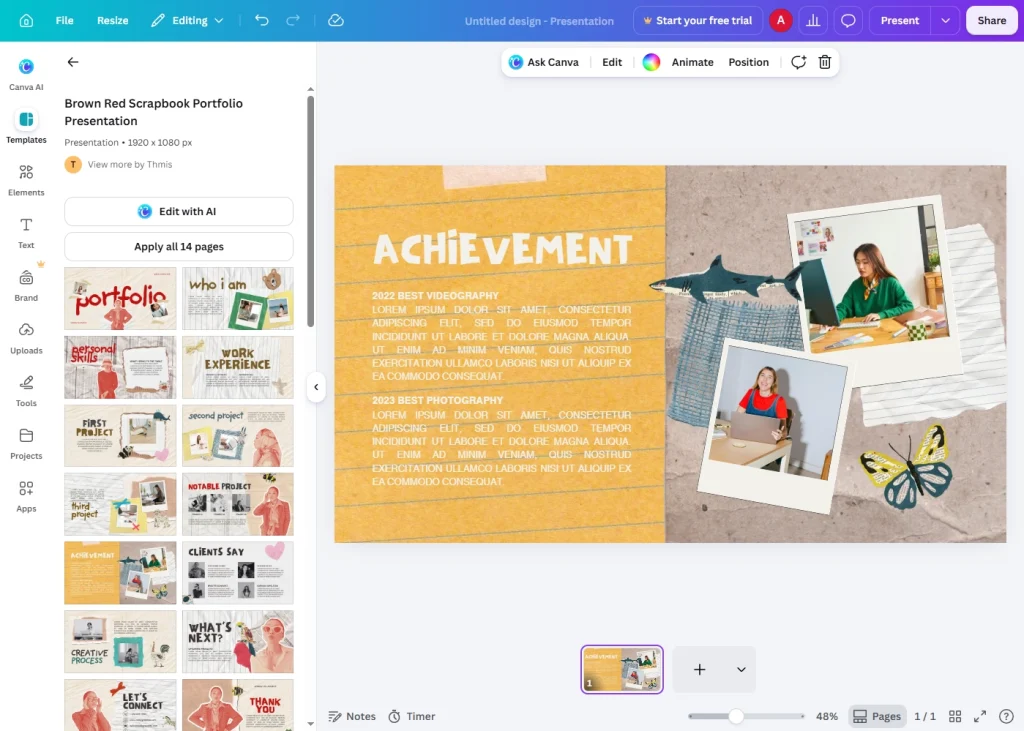
Start by opening the design you’re working on in Canva, either from a new project or an existing one in your Projects folder. The Undo and Redo options only become active once you’ve made at least one change to the design.
Step 2: Locate the Undo and Redo Buttons
At the top of the Canva editor, near the top-left corner, you’ll find two curved arrow icons:
- Undo (left-pointing curved arrow): Reverses your last action.
- Redo (right-pointing curved arrow): Reapplies an action you just undid.
These buttons are grayed out when there’s no action to undo or redo, and become active as soon as you start editing.
Step 3: Use Undo to Reverse a Mistake
To undo your most recent action, simply click the Undo arrow once. Each click moves you one step back in your edit history. For example:
- Delete a text box by accident.
- Click the Undo button.
- The text box reappears exactly as it was.
You can click Undo multiple times in a row to step back through several changes, one at a time.
Step 4: Use Redo to Restore an Undone Action
If you undo too many steps or change your mind, click the Redo arrow to move forward again. This reapplies the action you just reversed. Redo only works immediately after an Undo — if you make a new edit after undoing, the redo history is cleared.
Step 5: Use Keyboard Shortcuts for Faster Editing
Clicking buttons works fine, but keyboard shortcuts are much faster for frequent edits. Canva supports standard shortcuts on both Windows and Mac:
| Action | Windows Shortcut | Mac Shortcut |
|---|---|---|
| Undo | Ctrl + Z | Cmd + Z |
| Redo | Ctrl + Y or Ctrl + Shift + Z | Cmd + Shift + Z |
Memorizing these shortcuts is one of the easiest ways to speed up your design process in Canva.
Step 6: Check Your Version History for Deeper Edits
If you need to go back further than the standard Undo/Redo allows — for example, to a version from an earlier editing session — use Canva’s Version History feature:
- Click File in the top menu.
- Select Version history.
- Browse through the list of saved versions, each with a timestamp.
- Click any version to preview it.
- Select Restore this version if you want to revert your entire design to that point.
This is especially useful for recovering work after a long editing session or when multiple collaborators have made changes.
Common Issues With Undo and Redo (And How to Fix Them)
Undo button is grayed out This usually means there’s nothing left to undo, or you just opened the file and no changes have been made yet.
Redo stopped working Redo only stays available until you make a new edit. Once you type, move, or delete something new after undoing, the redo history clears and can’t be recovered.
Changes not saving after undo Canva autosaves automatically, but on a slow internet connection, saves can lag behind your actions. Wait a moment after making changes before closing the tab.
Undo isn’t going back far enough Standard Undo only tracks your current session’s recent actions. For older changes, use Version History instead, as described in Step 6.
Tips for Using Undo and Redo Effectively
- Save versions intentionally by duplicating your design before making big changes, so you always have a clean copy to fall back on.
- Undo in small steps rather than holding the shortcut down, so you don’t accidentally skip past the version you wanted.
- Combine Undo with Version History for the most flexibility — use Undo for quick fixes and Version History for major rollbacks.
Final Thoughts
Canva’s Undo and Redo features are simple but essential tools for anyone creating designs on the platform. By mastering the buttons, keyboard shortcuts, and Version History option, you can edit fearlessly, experiment with new ideas, and always find your way back to a version you love.
Next time you make a mistake in Canva, just remember: Ctrl+Z (or Cmd+Z) is only one keystroke away.