
The background of your design sets the tone for everything on top of it. Whether you want a clean solid color, a rich gradient, a textured pattern, or a full photo backdrop, Canva gives you flexible tools to create exactly the look you need — no design experience required.
In this guide, you’ll learn how to add, change, and edit backgrounds in Canva across every method available — solid colors, gradients, images, patterns, and videos — on both desktop and mobile.
What You’ll Need
- A free or paid Canva account (canva.com)
- An open design or a new project
- Optional: your own background images or textures uploaded to Canva
Method 1: Add a Solid Color Background
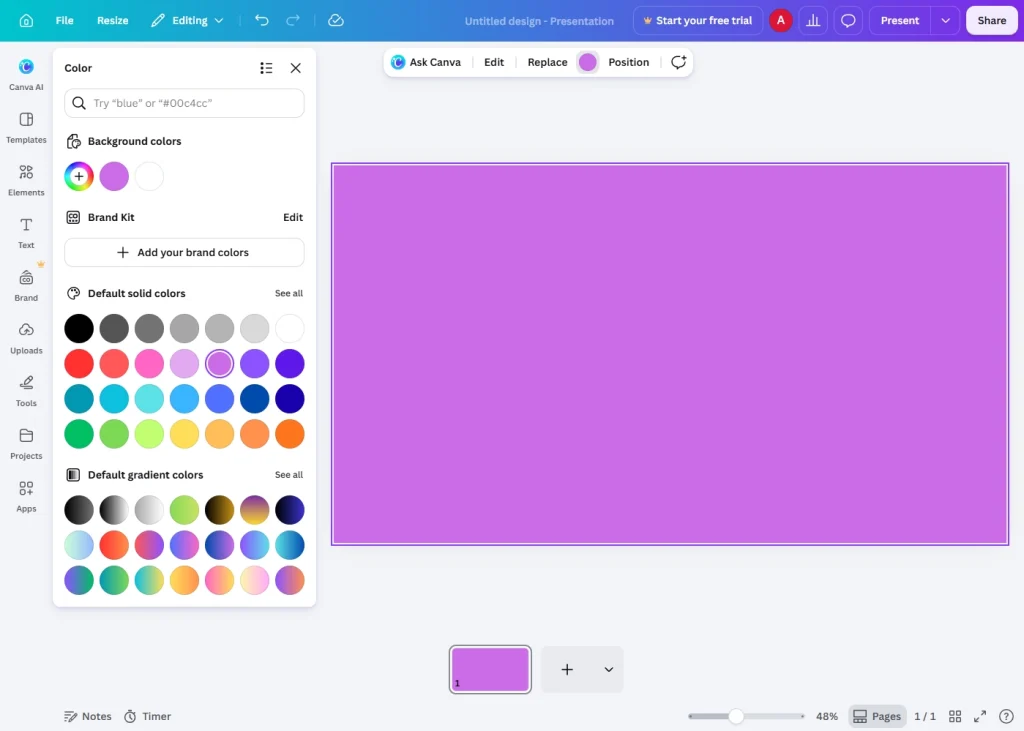
A solid color background is the simplest and most versatile option — great for social media posts, presentations, and branded content.
On Desktop
- Open your design in the Canva editor.
- Click on an empty area of the canvas (not on any element) to select the background itself. A color swatch will appear in the top-left toolbar.
- Click the color swatch to open the color picker.
- Choose a color by:
- Clicking a color from Your colors or Document colors
- Selecting from Canva’s preset color palette
- Entering a custom hex code (e.g.,
#1A73E8) for precise brand matching - Using the color spectrum slider to pick any shade
- The background updates instantly as you select.
On Mobile
- Open your design in the Canva app.
- Tap an empty area of the canvas to select the background.
- Tap the color swatch that appears in the bottom toolbar.
- Choose a color from the palette or enter a hex code.
Pro Tip: If clicking the canvas doesn’t select the background (because it’s covered by a large element), use the Layers panel (desktop: Position → Layers) to select the background layer directly.
Method 2: Add a Gradient Background
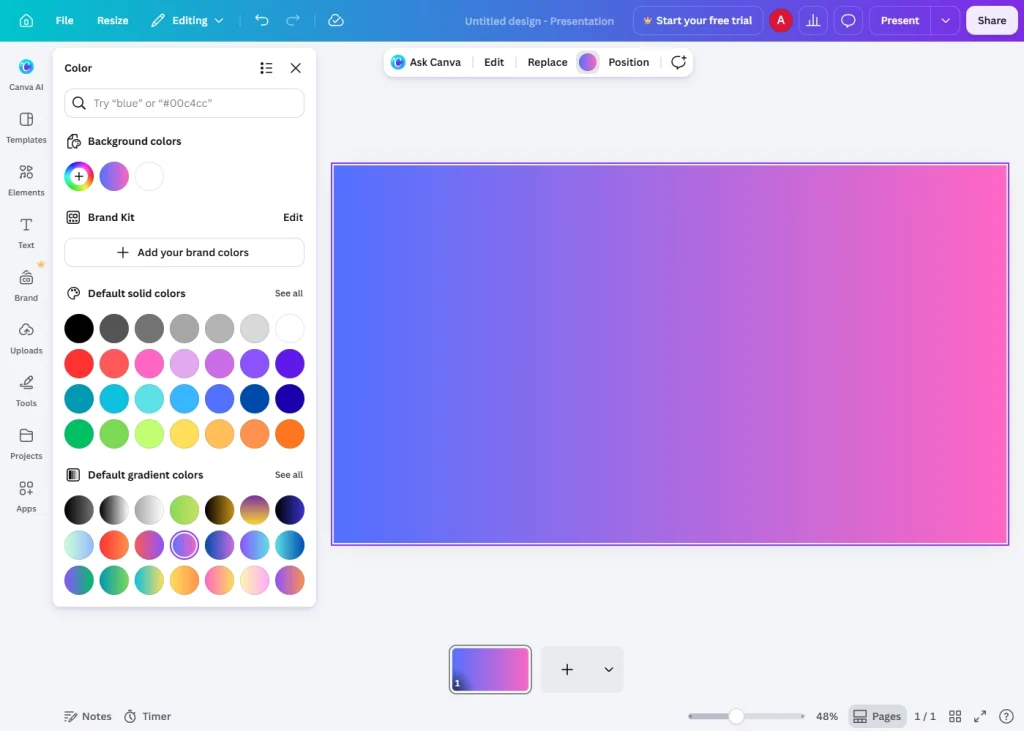
Gradients add depth and visual interest without needing a photo. Canva supports gradient backgrounds natively.
Creating a Gradient Background
- Click the background of your canvas to select it.
- Click the color swatch in the toolbar to open the color picker.
- At the top of the color picker, click the gradient tab (shown as a fading square icon, next to the solid color tab).
- Choose from Canva’s preset gradients, or build a custom one:
- Click the left color stop to set the starting color.
- Click the right color stop to set the ending color.
- Drag the stops along the gradient bar to control the transition point.
- Use the gradient direction buttons (linear left-to-right, top-to-bottom, diagonal, or radial) to control the angle.
Note: The gradient background tool is available on both free and Pro plans.
Method 3: Use a Photo or Image as a Background
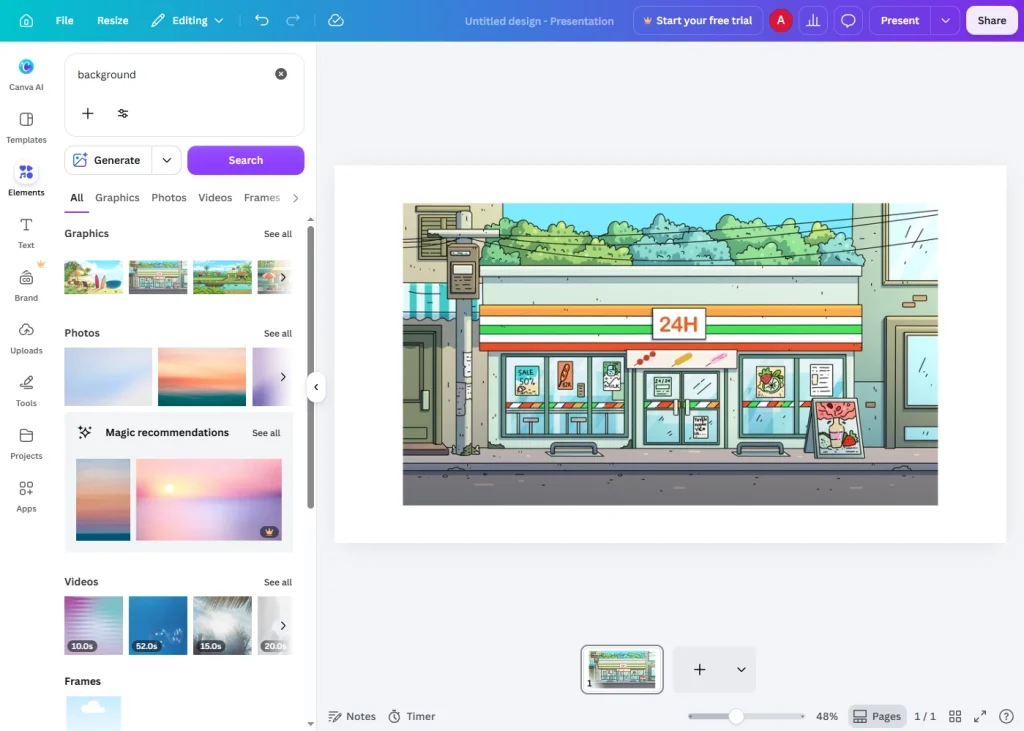
Using a photo creates an immersive, high-impact backdrop for your design.
Option A: Use Canva’s Built-In Photo Library
- In the left sidebar, click “Elements” and search for “backgrounds”, or click “Photos” to browse Canva’s stock image library.
- Alternatively, click “Background” if it appears as a dedicated panel in your sidebar (available in some design types).
- Click any photo to instantly set it as the full-canvas background.
- Drag the image to reposition it within the frame, or use “Edit image” to crop or adjust it.
Option B: Upload Your Own Background Image
- Click “Uploads” in the left sidebar.
- Click “Upload files” and select your image from your device.
- Once uploaded, click the image in the Uploads panel to place it on the canvas.
- Resize it to cover the full canvas by dragging the corner handles.
- Right-click the image → “Set as background” to anchor it as the background layer, or send it to the back via right-click → Layer → Send to back.
Option C: Drag and Drop a Background Image
- From the Uploads or Photos panel, click and hold an image.
- Drag it to the edge of the canvas until you see a purple highlight around the entire canvas border.
- Release — Canva will automatically set the image as the full background, scaled to fit.
Method 4: Use a Pattern or Texture as a Background
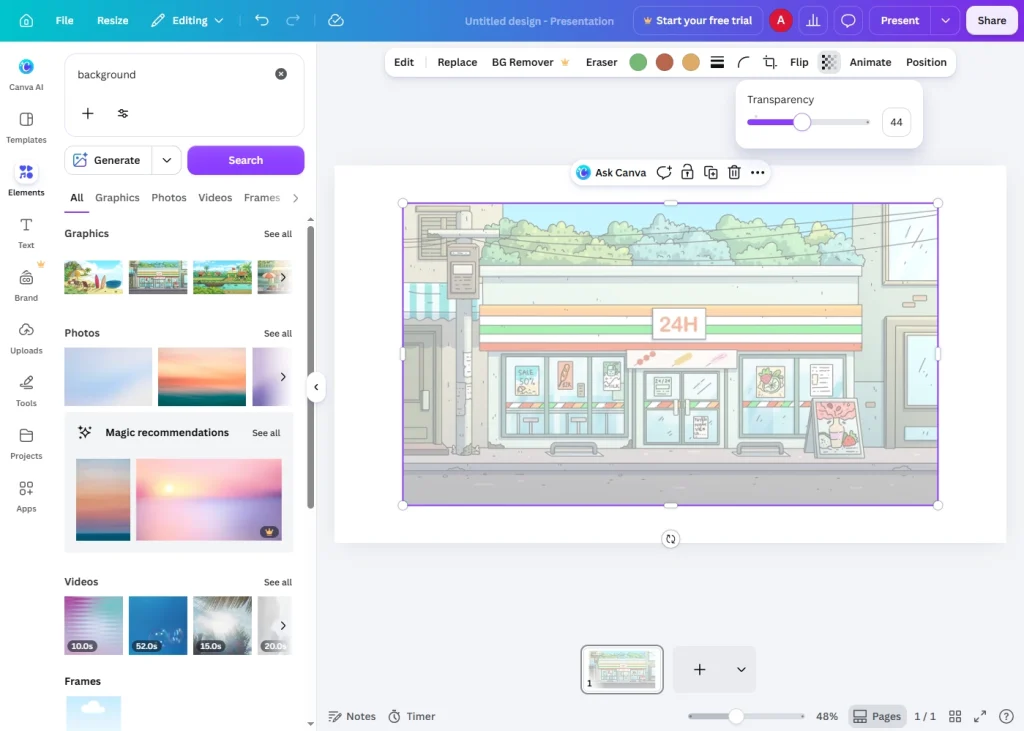
Patterns and textures add richness to designs like invitations, certificates, and social media graphics.
Finding Patterns in Canva
- In the left sidebar, click “Elements”.
- In the search bar, type keywords like “pattern”, “texture”, “marble”, “geometric”, “watercolor”, or “wood grain”.
- Browse the results — look for full-coverage background graphics (they’ll stretch to fill the canvas).
- Click any result to add it to your design, then resize to cover the full canvas.
- Right-click → “Send to back” to use it as the background layer.
Using the Background Panel Directly
Some Canva design types include a dedicated “Background” option in the sidebar that shows curated textures and patterns ready to use as one-click backgrounds.
Method 5: Use a Video as a Background
Canva supports animated and video backgrounds, useful for social media stories, presentations, and video exports.
- In the left sidebar, click “Elements” and search for “video background”, or click “Videos” to browse Canva’s video library.
- Click a video clip to add it to the canvas.
- Resize it to fill the full canvas.
- Right-click → “Send to back” to use it as the background layer.
- Add other design elements (text, shapes, overlays) on top of the video.
Note: Video backgrounds only animate in video exports (MP4). In static image exports (PNG, JPG), only the first frame of the video will appear.
How to Edit and Adjust Backgrounds in Canva
Once your background is set, Canva offers several tools to refine it.
Adjust Image Background Brightness, Contrast & Filters
- Click the background image to select it.
- In the top toolbar, click “Edit image”.
- Use the “Adjust” panel to change:
- Brightness — lighten or darken the image
- Contrast — increase or decrease tonal range
- Saturation — make colors more vivid or muted
- Warmth — shift the color temperature toward warm or cool tones
- Blur — soften the background to make foreground elements pop
- Apply a filter from the Filters tab for a one-click style change.
Add a Color Overlay to a Photo Background
A semi-transparent overlay over a photo background improves text readability and creates a cohesive look.
- Add a rectangle shape from the Elements panel and resize it to cover the full canvas.
- Set the rectangle’s fill color to your chosen overlay color (black, white, or a brand color works well).
- Reduce the rectangle’s opacity to around 30–60% using the opacity slider in the top toolbar.
- Send the rectangle backward (right-click → Layer → Send backward) so it sits between the background image and your foreground elements.
Blur a Photo Background
- Click the background image.
- Click “Edit image” in the top toolbar.
- In the Adjust panel, drag the “Blur” slider to the right.
- Higher blur values create a strong bokeh-style effect; lower values create a subtle soft focus.
Remove a Background Image Completely
- Click the background image.
- Press Delete or Backspace on your keyboard.
- The canvas will revert to a plain white background.
- Alternatively, click “Edit image” → “BG Remover” (Canva Pro) to isolate the subject from the background while keeping the rest intact. If you do not have a subscription, you can try using the online tools available on this site—they are completely free.
Resize and Reposition a Background Image
- Click the background image to select it.
- Drag the corner handles to resize.
- Click and drag inside the image to reposition it within the canvas frame.
- Use “Edit image” → “Crop” to fine-tune exactly which part of the image is visible.
How to Copy a Background to Another Page
If your design has multiple pages and you want a consistent background:
- Right-click the background on the page you want to copy from.
- Select “Copy”.
- Navigate to the target page.
- Press Ctrl + V (Windows) or Cmd + V (Mac) to paste.
- Resize to cover the canvas if needed, and send to back via right-click → Layer → Send to back.
Alternatively, duplicate the entire page (click the three-dot menu on a page thumbnail → “Duplicate page”) to carry the background and all elements across.
Background Tips by Design Type
| Design Type | Recommended Background Approach |
|---|---|
| Social media post | Bold solid color or brand-colored gradient |
| Presentation slide | Subtle texture, light gradient, or full-bleed photo with overlay |
| Instagram Story | Full-bleed photo or video background |
| Flyer / poster | High-resolution photo background with dark overlay for text contrast |
| Resume / CV | Clean white or very light solid color |
| Certificate / diploma | Elegant pattern or parchment texture |
| YouTube thumbnail | High-contrast photo background with strong color overlay |
| Business card | Solid brand color or minimal gradient |
| Email header | Wide, horizontal photo background, moderate brightness |
Troubleshooting Common Background Issues
Can’t Click the Background to Select It
- The canvas may be fully covered by another element (like a large image or shape). Use the Layers panel (click “Position” in the toolbar → “Layers”) to select the background layer directly.
- Alternatively, press Escape to deselect everything, then try clicking a corner of the canvas.
Background Image Has White Space / Doesn’t Fill the Canvas
- Drag the corner handles of the image outward until it covers the full canvas.
- Or right-click the image → “Set as background” — Canva will auto-scale it to fill.
Photo Background Makes Text Hard to Read
- Add a semi-transparent color overlay (rectangle with reduced opacity) between the background and text.
- Use Canva’s “Edit image” → Adjust → Brightness to darken or lighten the image.
- Apply a blur effect to reduce visual noise behind text.
Background Color Looks Different After Export
- Canva uses sRGB color space for exports. Colors may render slightly differently on various screens. For brand accuracy, verify with a hex code and export as PNG for highest fidelity.
Can’t Add a Video Background on Mobile
- Video backgrounds may have limited support on the Canva mobile app. For full video background functionality, use Canva on a desktop browser.
Frequently Asked Questions
How do I change the background color in Canva?
Click on an empty area of the canvas to select the background, then click the color swatch in the top toolbar. Choose a solid color, gradient, or enter a custom hex code in the color picker.
Can I use my own photo as a Canva background?
Yes. Upload your image via the Uploads panel, place it on the canvas, resize it to fill the canvas fully, and right-click → “Set as background” (or send it to back via Layer controls).
How do I make a transparent background in Canva?
Canva’s canvas does not support a fully transparent background in the editor view, but you can export your design as a PNG with transparent background: go to Share → Download → File type: PNG → check “Transparent background” (available on Canva Pro).
How do I add a gradient background in Canva?
Click the canvas background, click the color swatch, then select the gradient tab (fading square icon) in the color picker. Choose a preset or customize your own gradient with two or more color stops.
Can I have different backgrounds on different pages in Canva?
Yes. Each page in a Canva design can have its own unique background — color, image, gradient, or pattern — completely independent of other pages.
Is the background remover free in Canva?
The BG Remover (background remover for uploaded images) is a Canva Pro feature. Free users can use third-party tools like remove.bg and then upload the result to Canva.
Key Takeaways
- Click any empty area of the canvas to access background color and gradient settings instantly.
- Use “Set as background” when placing images for automatic full-canvas scaling.
- Add a semi-transparent shape overlay over photo backgrounds to improve text legibility.
- Blur, brightness, and filter adjustments are available via “Edit image” for photo backgrounds.
- Transparent background export (PNG) requires Canva Pro.
- Each page in a multi-page design can have its own independent background.