
Once your Canva design is ready, the final step is downloading it in the right file format for its intended use — whether that’s a print-ready PDF for a flyer, a high-resolution PNG for a website, or a compressed JPEG for email. Choosing the wrong format can result in blurry images, missing transparency, or files too large to send.
This guide covers exactly how to download your Canva design as a PDF, PNG, or JPEG, explains when to use each format, and walks through all the advanced export settings so you get the perfect file every time — on both desktop and mobile.
What You’ll Need
- A free or paid Canva account (canva.com)
- A completed design ready to export
- Basic understanding of your intended use case (print, web, email, etc.)
Quick Format Reference: PDF vs PNG vs JPEG
Before downloading, choose the format that matches your use case:
| Format | Best For | Transparency | File Size | Notes |
|---|---|---|---|---|
| PDF (Standard) | Sharing digitally, presentations, e-books | No | Medium | Good for multi-page documents |
| PDF (Print) | Professional printing, flyers, brochures | No | Large | Includes crop marks and bleed (Pro) |
| PNG | Web graphics, logos, social media | Yes | Medium–Large | Best for images with transparent backgrounds |
| JPEG / JPG | Photos, email, web images | No | Small | Smaller file size, slight quality compression |
| SVG | Scalable graphics, web use | Yes | Very small | Requires Canva Pro |
| MP4 / GIF | Animated designs, video | N/A | Large | For designs with motion elements |
How to Download a Canva Design on Desktop
Step 1: Open Your Design
- Go to canva.com and log in.
- Open the design you want to download from your Home dashboard or Projects.
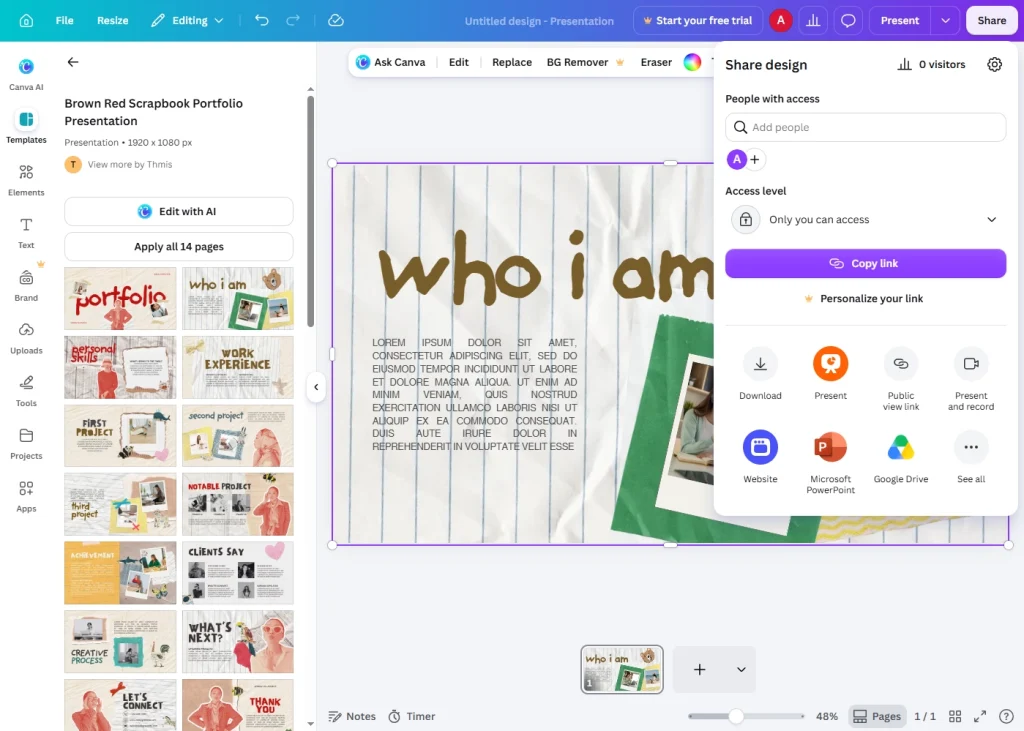
Step 2: Click the Share / Download Button
- In the top-right corner of the editor, click the “Share” button (purple button).
- In the dropdown menu, click “Download”.
- The Download panel will open with all export options.
Step 3: Choose Your File Type
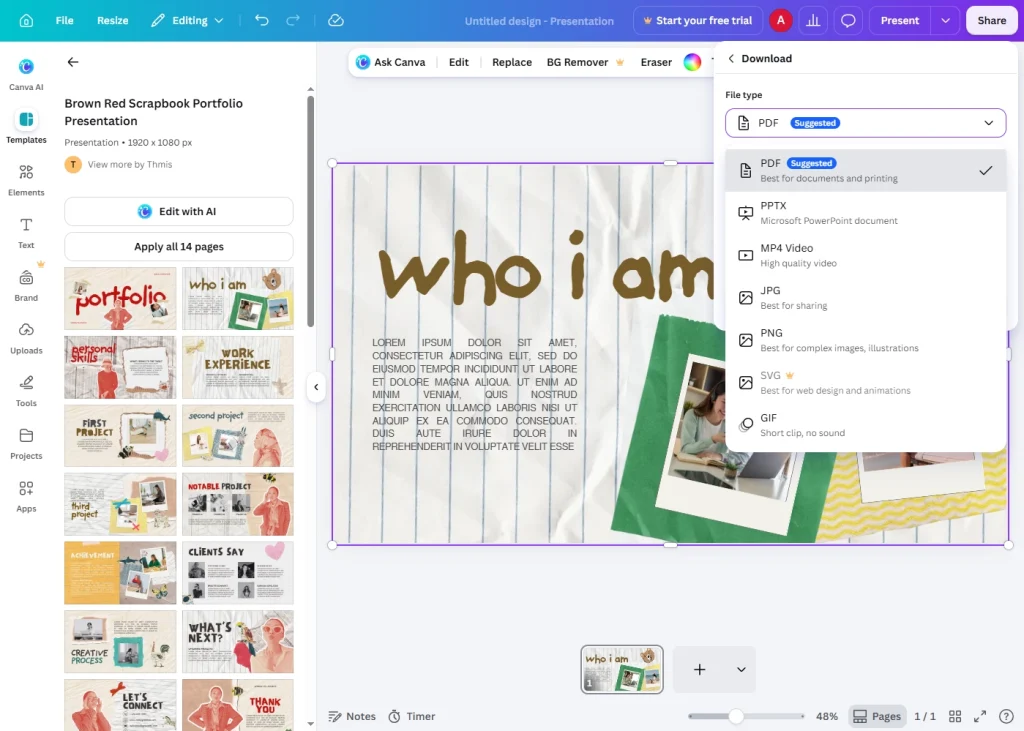
Click the “File type” dropdown and select your desired format:
- PDF Standard — for digital sharing and screen viewing
- PDF Print — for professional print output
- PNG — for web, logos, and transparent backgrounds
- JPG — for photos and compressed web images
- SVG — for scalable vector use (Pro only)
- MP4 — for video or animated designs
- GIF — for animated social media graphics
Step 4: Configure Download Settings
Depending on the format selected, you’ll see additional options:
For PNG and JPEG:
- Size / Scale — Choose 1x (standard), 2x, or 3x resolution. Use 2x or 3x for retina displays and high-resolution printing.
- Compress file — (JPEG only) Check this box to reduce file size for faster loading and email attachments.
- Transparent background — (PNG only, Canva Pro) Check this to export with a transparent background instead of white.
For PDF:
- All pages / Select pages — Choose to download the full document or specific pages only.
- Flatten PDF — Merges all layers into a single flat image (useful for preventing font or element issues when sharing with printers).
- PDF Print options — Includes crop marks and bleed settings for professional print production (Pro only).
Step 5: Select Pages to Download (Multi-Page Designs)
If your design has multiple pages:
- Below the file type selector, you’ll see a page selector.
- Toggle “All pages” to download the complete document.
- Or click specific page thumbnails to download only selected pages.
Step 6: Click “Download”
- Once your settings are configured, click the “Download” button.
- The file will process and automatically save to your device’s default Downloads folder.
- For large files or high-resolution exports, processing may take a few seconds.
How to Download a Canva Design on Mobile (iOS & Android)
Step 1: Open Your Design in the Canva App
- Launch the Canva app and open your design.
Step 2: Tap the Share / Export Button
- Tap the share icon (an upward arrow) in the top-right corner of the editor.
- Tap “Download” or “Export” from the menu.
Step 3: Choose Your Format and Settings
- Tap the file type selector and choose PDF, PNG, or JPG.
- Adjust any available settings (page selection, resolution, transparency).
Step 4: Save to Your Device
- Tap “Download”.
- On iOS: the file saves to your Files app or Photos (for images), or you’ll be prompted to share via AirDrop, save to iCloud, etc.
- On Android: the file saves to your Downloads folder or Gallery (for images).
Downloading as PDF: When and How
PDF is the most versatile format for documents, presentations, and print-ready files.
PDF Standard — For Digital Sharing
Use PDF Standard when:
- Sharing a presentation, e-book, or proposal digitally
- The recipient needs to view or print a multi-page document
- You want fonts and layout to appear consistently on any device
Steps:
- File type → PDF Standard
- Select pages (all or specific)
- Optionally check “Flatten PDF” to lock all elements in place
- Click Download
PDF Print — For Professional Printing
Use PDF Print when:
- Sending a file to a commercial printer (flyers, brochures, business cards)
- You need crop marks and bleed for accurate cutting
- Maximum print quality is required
Steps:
- File type → PDF Print
- Enable “Crop marks and bleed” if required by your printer (Canva Pro)
- Click Download
Pro Tip: Always ask your print shop for their preferred settings — bleed size (typically 3mm or 0.125″), color profile (CMYK vs RGB), and whether they need crop marks.
Downloading as PNG: When and How
PNG is the best format for web graphics, logos, and any image requiring a transparent background.
When to Use PNG
- Logos and icons (especially with transparent backgrounds)
- Social media graphics where image quality matters
- Website banners, headers, and thumbnails
- Designs with text that must remain crisp and sharp
- Any image that will be placed over another background
PNG Download Settings
- File type → PNG
- Resolution/Scale:
- 1x — Standard resolution, fine for most digital uses
- 2x — Double resolution, ideal for retina/HiDPI screens
- 3x — Triple resolution, best for large-format digital displays
- Transparent background (Pro only) — Check this box if your design has transparency you want to preserve
- Select pages if multi-page
- Click Download
Note: PNG files are lossless — they retain full image quality but result in larger file sizes than JPEG.
Downloading as JPEG: When and How
JPEG is the best format for photographs and situations where a smaller file size is a priority.
When to Use JPEG
- Photographs and photo-heavy designs
- Email attachments where file size matters
- Blog post images and basic web content
- Designs with no transparent elements
- Situations where storage space or upload limits are a concern
JPEG Download Settings
- File type → JPG
- Resolution/Scale: Choose 1x, 2x, or 3x
- Compress file — Check this to reduce file size (applies mild compression; slight quality reduction is usually imperceptible)
- Select pages if applicable
- Click Download
Note: JPEG uses lossy compression — some image data is discarded to reduce file size. For designs with fine text or sharp edges, PNG produces noticeably crisper results.
How to Download Only Specific Pages
For multi-page designs like presentations or catalogs, you can download individual pages instead of the full document:
- In the Download panel, look for the page selector below the file type dropdown.
- Deselect “All pages”.
- Click the thumbnails of the specific pages you want.
- Click Download — only the selected pages will be exported.
This is useful when:
- You only updated a few slides in a large presentation
- A client needs a single page from a multi-page brochure
- You want to export different sections in different formats
How to Download a High-Resolution File for Print
For print-quality output, follow these best practices:
- Choose PDF Print for documents going to a commercial printer.
- Choose PNG at 3x for digital files that will be printed at home or in small quantities.
- Enable “Crop marks and bleed” (PDF Print, Pro only) if your printer requires it.
- Make sure your original design is built at the correct dimensions — Canva’s custom size tool lets you set exact inches or millimeters with the correct DPI context.
- Verify that all images in your design are high resolution before downloading — low-resolution uploaded images will still look pixelated even at 3x export.
How to Download with a Transparent Background (PNG)
Transparent backgrounds are essential for logos, watermarks, and overlay graphics.
- Complete your design, leaving the background empty (delete the background or don’t add one).
- In the Download panel, select PNG as the file type.
- Check the “Transparent background” checkbox.
- Click Download.
- The exported PNG will have a checkered-pattern transparent area (visible in image editors) wherever no design elements exist.
Requirement: Transparent background export is a Canva Pro feature. Free users can use a workaround: export as PNG normally, then remove the background using a free tool like remove.bg before re-uploading.
Troubleshooting Common Download Issues
Download Button Is Grayed Out or Not Working
- Refresh the page and try again.
- Check your internet connection — Canva needs to process the file server-side before downloading.
- Try a different browser (Chrome or Firefox recommended).
- Clear your browser cache and cookies.
File Downloads But Won’t Open
- Ensure you have an app that supports the file type (PDF reader, image viewer).
- The file may be corrupted if the download was interrupted — delete it and download again.
PNG File Has a White Background Instead of Transparent
- The “Transparent background” checkbox must be checked before downloading.
- This feature requires Canva Pro — free accounts export PNG with a white background by default.
- Make sure no white rectangle or background shape is sitting behind your elements.
PDF Looks Different From the Canva Editor
- Fonts may not have embedded correctly. Try checking “Flatten PDF” before downloading to convert text to image paths.
- Some visual effects (shadows, blurs) may render slightly differently in PDF viewers — always preview in your target application.
Downloaded File Is Too Large
- For JPEG, check the “Compress file” option to reduce file size.
- For PNG, reduce the scale to 1x instead of 2x or 3x.
- For PDF, use PDF Standard instead of PDF Print (which is higher resolution).
JPEG Quality Looks Pixelated or Blurry
- Ensure you’re exporting at 2x or 3x scale for higher resolution.
- Verify that the source images in your design are high resolution — Canva cannot improve the quality of low-resolution uploaded images.
Frequently Asked Questions
What is the best format to download from Canva?
It depends on your use case. Use PDF Print for professional printing, PNG for web graphics and logos (especially with transparent backgrounds), and JPEG for photo-heavy designs or when file size matters.
How do I download a Canva design as a PDF?
Click “Share” → “Download” → select “PDF Standard” or “PDF Print” from the File type dropdown → choose your pages → click “Download.”
How do I download a Canva design with a transparent background?
Select PNG as the file type, check “Transparent background,” and click Download. This feature requires a Canva Pro subscription.
Can I download a Canva design for free?
Yes. Free Canva accounts can download designs in PNG, JPG, and PDF Standard formats. Some options — like transparent PNG backgrounds, PDF Print with crop marks, and SVG exports — require Canva Pro.
How do I download only one page of a multi-page Canva design?
In the Download panel, deselect “All pages” and click the thumbnail of the specific page you want. Only the selected page will be downloaded.
Why is my Canva download blurry?
The most common causes are: exporting at 1x resolution (try 2x or 3x), using low-resolution source images in the design, or viewing a JPEG that has been heavily compressed. Switch to PNG at 2x for the sharpest results.
Can I download a Canva design as a Word document or PowerPoint?
Canva offers a PPTX (PowerPoint) export option in addition to PDF, PNG, and JPEG. There is no direct Word (.docx) export, but you can download as PDF and convert using tools like Microsoft Word or Adobe Acrobat.
Key Takeaways
- Access downloads via Share → Download in the top-right corner of the Canva editor.
- Use PDF Print for professional printing, PNG for web and logos, JPEG for photos and email.
- Export at 2x or 3x for high-resolution output — essential for print and retina displays.
- Transparent background PNG requires Canva Pro.
- Download specific pages by deselecting “All pages” in the Download panel.
- Flatten PDF when sharing with printers or to avoid font rendering issues.