
A logo is often the first thing people notice about a brand, and Canva has become a go-to tool for creating one without hiring a designer. With its drag-and-drop editor, built-in logo templates, and font/icon libraries, Canva makes it possible to design a clean, professional logo in under an hour.
This guide walks through exactly how to design a professional logo in Canva, from starting a project to exporting a print- and web-ready file.
Why Use Canva to Design a Logo?
- No design experience required — pre-built templates handle layout and composition.
- Fully customizable — swap fonts, colors, icons, and shapes freely.
- Multiple export formats — download as PNG, SVG, or PDF depending on your use case.
- Affordable — many logo templates and elements are available on the free plan.
- Brand Kit integration — save your logo, fonts, and colors for consistent use across future designs.
Step 1: Start a New Logo Project
- Log in to your Canva account.
- Click Create a design and search for “Logo” in the template search bar.
- Canva will open a blank canvas sized specifically for logo design (typically a square format).
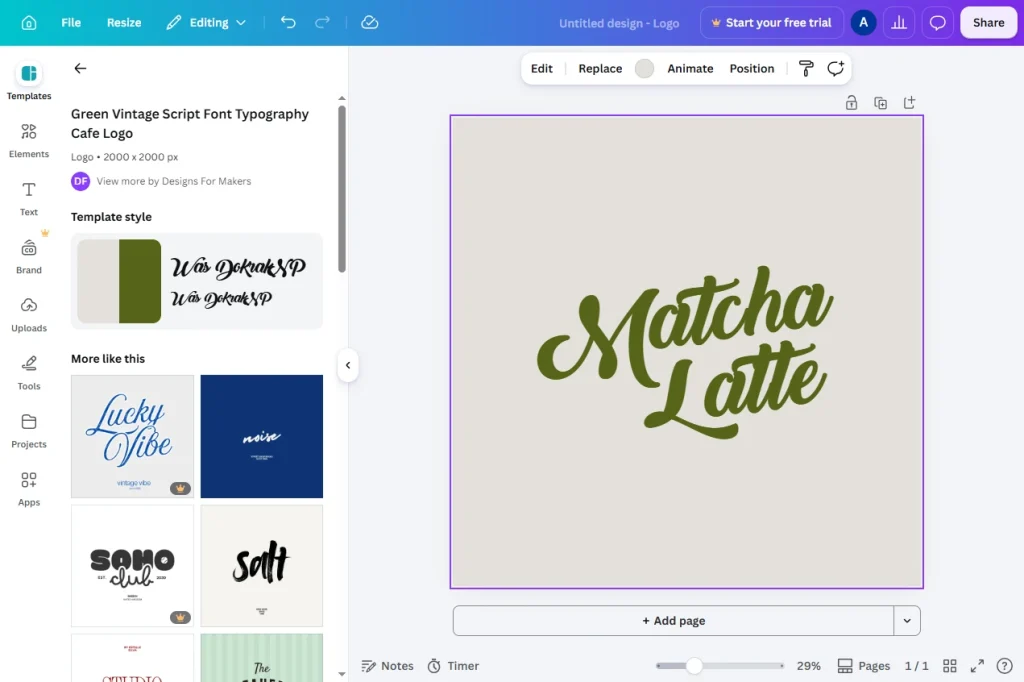
Step 2: Choose a Starting Template (Optional but Recommended)
Browse the template panel on the left and pick a design closest to your vision — minimalist, bold, playful, or elegant. Starting from a template gives you a solid layout foundation that you can fully customize rather than building from scratch.
Tip: Filter templates by industry (e.g., “restaurant logo,” “tech logo”) to find styles that fit your niche.
Step 3: Customize the Icon or Symbol
Most logos pair a symbol/icon with text. To change it:
- Click the existing icon in the template.
- Delete it and search Elements for a new icon that fits your brand (e.g., “leaf,” “mountain,” “shield”).
- Recolor the icon using the color swatch in the toolbar to match your brand palette.
Step 4: Edit the Logo Text
- Click the text layer containing the business name.
- Replace it with your actual brand name.
- Adjust the font using the Font dropdown — choose something that reflects your brand’s tone (e.g., a serif font for a law firm, a rounded sans-serif for a children’s brand).
- Use Effects in the toolbar to add shadow, outline, or spacing adjustments if needed.
Step 5: Choose Your Color Palette
- Click each element (icon, text, background) and open the color picker.
- Stick to 2–3 colors maximum for a clean, professional look.
- If you already have brand colors, enter their exact hex codes for consistency across all your materials.
Step 6: Adjust Layout and Spacing
Use Canva’s alignment guides (pink lines that appear automatically) to make sure your icon and text are centered and evenly spaced. Group the icon and text together once positioned correctly so they move as a single unit.
Step 7: Save to Your Brand Kit
If you’re on Canva Pro:
- Click Brand Kit in the left-hand sidebar.
- Upload or save your finished logo, along with your brand fonts and colors.
- This lets you quickly apply the same branding across future designs like social posts, presentations, and documents.
Step 8: Export Your Logo
- Click Share in the top-right corner, then select Download.
- Choose the right file type for your use case (see the table below).
- For logos with transparent backgrounds, check the Transparent background option before downloading (available for PNG on Canva Pro).
Choosing the Right Export Format
| Format | Best For | Transparent Background |
|---|---|---|
| PNG | Websites, digital use, social media | ✅ Yes (Pro) |
| SVG | Scalable use, printing at any size | ✅ Yes |
| PDF Standard | Sharing drafts, general printing | ❌ No |
| PDF Print | Professional/commercial printing | ❌ No |
Common Issues When Designing a Logo in Canva
Logo looks blurry when resized
Vector-based icons and text stay sharp at any size, but if you’ve inserted a raster (photo-based) graphic, it will lose quality when scaled up. Stick to Canva’s built-in vector elements for the cleanest results.
Can’t get a transparent background
Transparent PNG export is a Canva Pro feature. Free users can instead export as SVG, which supports transparency by default.
Font looks different after exporting
Make sure any custom or Pro fonts are fully loaded before exporting — refresh the page and confirm the font renders correctly in the editor first.
Logo doesn’t look right in black and white
Test your logo in grayscale early in the process, since many real-world use cases (stamps, faxes, single-color printing) require it to still be legible without color.
Tips for a Truly Professional Logo
- Keep it simple — the best logos are recognizable even at a small size (like a favicon).
- Limit your color palette to 2–3 colors for a cohesive, professional look.
- Choose no more than two fonts — one for the brand name, one for a tagline if needed.
- Test how it looks small — shrink the logo down to check legibility on a business card or app icon.
- Avoid overly trendy elements — a logo should still look good in five years, not just this season.
Frequently Asked Questions
Is it free to design a logo in Canva?
Yes, Canva’s free plan includes many logo templates, fonts, and icons. Some premium templates and elements require a Canva Pro subscription.
Can I trademark a logo I made in Canva?
Yes, as long as your design doesn’t rely on Pro elements restricted from exclusive use, and it meets your country’s trademark requirements — check Canva’s content license terms for specifics.
What file format should I use for a website logo?
PNG with a transparent background is typically best for websites, since it displays cleanly over any background color.
Can I edit my Canva logo after downloading it?
Yes, as long as the original design remains in your Canva account. Simply reopen the project, make changes, and re-export.
Conclusion
Designing a professional logo in Canva comes down to starting with a solid template, keeping your color palette and fonts minimal, and exporting in the right format for your use case. With Canva’s drag-and-drop tools and Brand Kit feature, you can create a polished, print- and web-ready logo without any prior design experience.