
Icons are one of the easiest ways to make a design feel polished, professional, and easy to scan — without needing any illustration skills. Canva’s built-in icon library gives you access to thousands of scalable icons that you can drop into any design, then recolor, resize, or group to match your brand.
This guide walks through exactly how to use Canva’s icon library, from finding the right icon to customizing it so it fits seamlessly into your project.
Why Use Canva’s Icon Library?
- Huge selection — thousands of icons across categories like business, technology, nature, and social media.
- Fully customizable — change color, size, and rotation with a few clicks.
- Vector-based — icons scale up or down without losing quality.
- No design skills required — no need to create icons from scratch or search external sites.
- Free and Pro options — many icons are available on Canva’s free plan.
Step 1: Open the Elements Panel
- Log in to your Canva account and open (or create) a design.
- Click Elements in the left-hand sidebar.
- Scroll down to the Graphics or Icons section, or use the search bar to jump straight to icons.
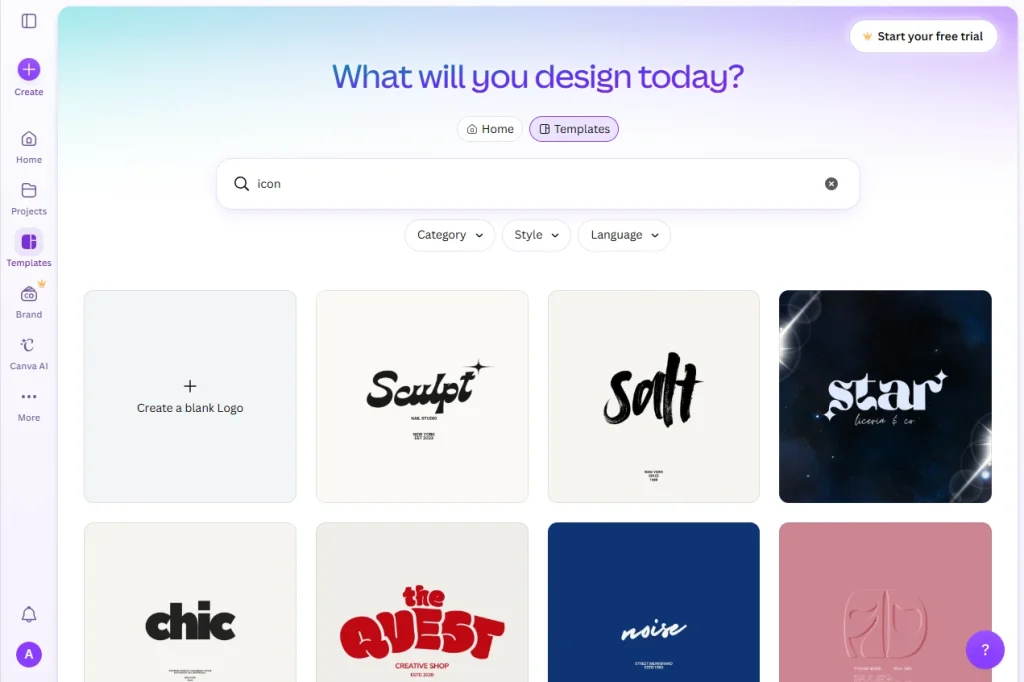
Step 2: Search for an Icon
Type a keyword into the search bar — for example, “arrow,” “checkmark,” “email,” or “light bulb.” Canva will display a grid of matching icons.
Tip: Add the word “icon” to your search (e.g., “calendar icon”) to filter out unrelated illustrations and photos.
Step 3: Identify Free vs. Pro Icons
Just like photos, some icons are part of Canva Pro:
- Icons with a small crown icon require a Canva Pro subscription.
- Icons without the crown are free to use on any plan.
Use the Filters button above the search results and select Free to show only non-Pro icons if you want to avoid paid content.
Step 4: Add the Icon to Your Design
Click the icon thumbnail, or drag and drop it directly onto your canvas. It will appear as an editable object that you can move, resize, or layer with other elements.
Step 5: Customize the Icon’s Color
To match your brand or color scheme:
- Click the icon to select it.
- Click the color swatch that appears in the top toolbar.
- Choose a color from your brand palette, the default color picker, or enter a custom hex code.
Most Canva icons are single-color, so they’ll instantly update to whatever color you choose.
Step 6: Resize, Rotate, or Flip the Icon
With the icon selected:
- Resize: Drag any corner handle to scale the icon proportionally.
- Rotate: Use the rotate handle above the icon, or enter a precise angle in the toolbar.
- Flip: Click the Flip option in the toolbar to mirror the icon horizontally or vertically.
Step 7: Group Icons with Text or Shapes
For a more polished layout:
- Select the icon and any nearby text or shape (hold Shift to multi-select).
- Right-click and choose Group, or use the toolbar’s group icon.
- This lets you move and resize the icon and its label together as one unit.
Where to Find More Icon Options
Canva’s “Frames” and “Shapes” Categories
Some icon-style graphics live under Frames or Shapes rather than the main Icons search — worth browsing if you can’t find exactly what you need.
Search by Style
Try adding style keywords like “line,” “flat,” or “3D” to your search (e.g., “flat arrow icon”) to get a more visually consistent set of results for your design.
Canva’s Icon Sets and Kits
Many icons are bundled into themed sets (e.g., a full set of social media icons). Searching a broad term like “social media icons” often surfaces a matched, consistent set rather than one-off icons.
Common Issues When Using Canva’s Icon Library
Icon color won’t change
Some icons are multi-color or part of a flattened graphic and can’t be recolored — look for the single-color line/flat icon style instead, which supports full recoloring.
Icons look pixelated when resized
This typically only happens with raster (photo-based) graphics mistakenly mixed into search results. True vector icons scale without quality loss — check that you selected an actual icon, not an illustration.
Can’t find a specific icon
Try simpler or alternate search terms (e.g., “phone” instead of “smartphone call icon”) since Canva’s search works best with short, common keywords.
Icon is a Pro-only asset
Apply the Free filter in Filters, or look for a similar free alternative using a different search term.
Tips for Using Icons Effectively in Designs
- Stick to one icon style (all line icons, or all flat icons) for visual consistency.
- Match icon colors to your brand palette rather than leaving them default black.
- Use icons to break up text-heavy slides or documents for easier scanning.
- Keep icon sizes consistent when using multiple icons in a row or grid.
- Group icons with labels so they stay aligned when you rearrange your layout.
Frequently Asked Questions
Are Canva’s icons free to use commercially?
Yes, both free and Canva Pro icons are cleared for commercial use under Canva’s content license, provided you follow Canva’s terms of use.
Can I change the color of any icon in Canva?
Most single-color (line or flat) icons can be recolored with one click. Multi-color or complex graphics may not support full recoloring.
How do I know if an icon requires Canva Pro?
Icons with a small crown symbol in the corner of the thumbnail require a Canva Pro subscription; icons without the crown are free.
Can I upload my own custom icons to Canva?
Yes. Use the Uploads tab to add your own icon files (such as PNG or SVG) if you need something outside Canva’s built-in library.
Conclusion
Canva’s icon library makes it easy to add clean, professional visual elements to any design without any illustration skills. By searching effectively, filtering for free content, and customizing color and size, you can build a consistent set of icons that elevates your presentations, social posts, and documents.