
Design rarely happens in isolation. Whether you’re working with a marketing team, a classroom group, or a client, Canva makes real-time collaboration simple — letting multiple people view, comment, and edit the same design at once. No more emailing files back and forth or losing track of which version is the latest.
In this guide, you’ll learn exactly how to set up and manage collaboration on a Canva design, use comments and mentions effectively, and troubleshoot common teamwork issues.
Why Collaborate in Canva
Canva’s collaboration tools are built for teams that need to move quickly and stay aligned. Collaborating directly in Canva allows you to:
- Edit the same design simultaneously with teammates in real time
- Leave comments and feedback directly on specific elements
- Tag team members so they’re notified instantly
- Track who made which changes without juggling multiple file versions
- Keep everyone working from a single source of truth
Once you know how to invite collaborators and manage their access, teamwork in Canva becomes far more efficient.
Step 1: Open the Design You Want to Collaborate On
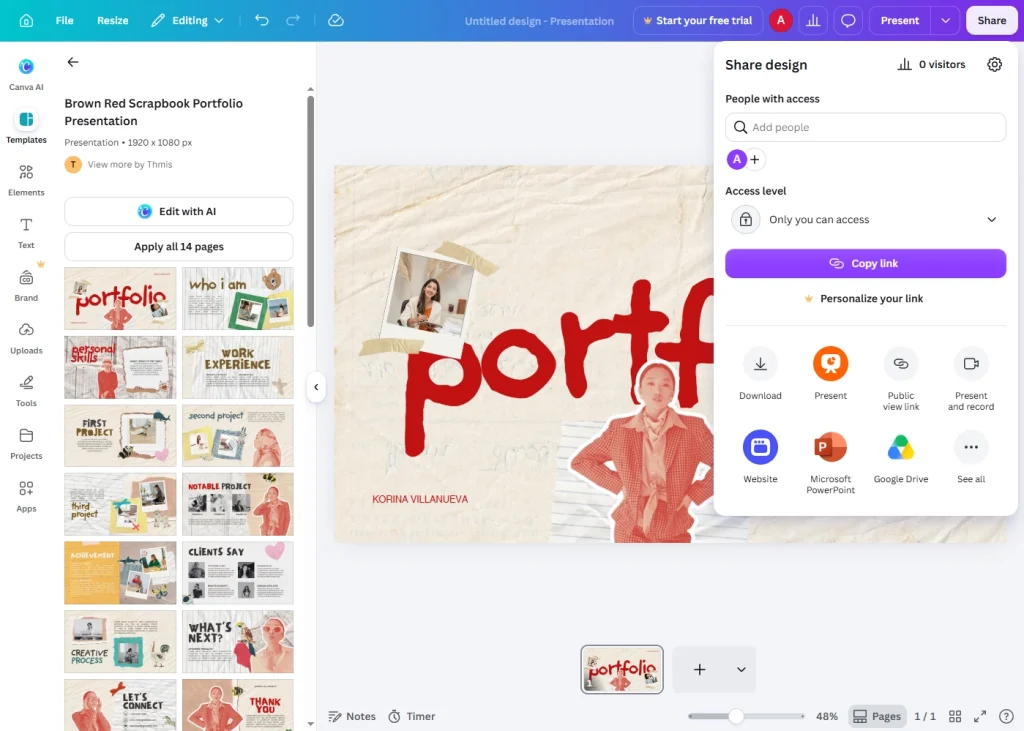
Log in to Canva and open the design from your Projects page, or continue in the editor if you’re already working on it.
Step 2: Click the Share Button
In the top-right corner of the editor, click Share. This opens the sharing and collaboration panel where you can invite people and set their access levels.
Step 3: Invite Collaborators by Email
To bring specific people into the design:
- In the “Invite people” field, type the collaborator’s email address.
- Choose their permission level: Can view, Can comment, or Can edit.
- Click Invite.
They’ll receive a notification (via email or in Canva) and can jump straight into the design.
Step 4: Or Share a Collaboration Link
If you’d rather not invite people individually, you can generate a shareable link instead:
- In the Share panel, find “Anyone with the link.”
- Set the permission level to Can edit so collaborators can make changes.
- Click Copy link and send it to your team.
Anyone with the link and edit access can now work on the design alongside you.
Step 5: Edit Together in Real Time
Once collaborators join, you’ll see their cursors and profile icons moving around the design as they work. Canva updates changes live, so everyone sees edits as they happen — no need to refresh or save manually.
Step 6: Leave Comments and Feedback
Comments are useful when you want to suggest changes without editing the design directly:
- Click the Comment icon in the toolbar, or right-click on a specific element.
- Type your feedback in the comment box.
- Click Post to publish the comment.
Comments appear next to the relevant element, making it clear exactly what the feedback refers to.
Step 7: Tag Collaborators with @Mentions
To draw a specific person’s attention to a comment:
- While typing a comment, type @ followed by their name.
- Select their name from the dropdown list.
- Post the comment.
The tagged person will receive a notification, ensuring your feedback doesn’t get missed.
Step 8: Resolve Comments Once Addressed
After a comment has been handled, keep your design clean by marking it as resolved:
- Hover over the comment thread.
- Click the checkmark icon to mark it as Resolved.
Resolved comments are hidden from the main view but remain accessible in the comment history if needed.
Step 9: Manage Collaborator Access
As your project evolves, you may need to adjust who can access the design:
- Click Share to reopen the panel.
- Find the collaborator’s name in the list.
- Use the dropdown next to their name to change their permission level, or remove them entirely.
This keeps your design secure and ensures only the right people can make changes.
Common Issues With Collaboration
Collaborator can’t edit the design Check their permission level in the Share panel — they may only have “Can view” or “Can comment” access. Change it to “Can edit” if needed.
Changes aren’t appearing in real time This is usually caused by a slow or unstable internet connection. Ask collaborators to refresh their browser or check their connection.
Too many people can access the design If you shared a public “Anyone with the link” URL with edit access, consider switching to email invites for specific people, or changing the link setting to “Only people invited.”
Comments aren’t notifying the right person Make sure you’re using the @mention feature correctly and that the person’s Canva account email matches the one you’re tagging.
Tips for Effective Canva Collaboration
- Use comments for feedback, edits for direct changes — this keeps the design history cleaner and avoids accidental overwrites.
- Set clear permission levels based on each person’s role, especially with external collaborators or clients.
- Resolve comments regularly to keep the feedback panel organized and easy to follow.
- Check Version History (File > Version history) if you need to review or restore an earlier state after multiple collaborators have made changes.
Final Thoughts
Canva’s collaboration features turn design into a genuinely shared process, letting your whole team contribute, comment, and edit in real time without the hassle of file versions or email attachments. By setting the right permissions and using comments and mentions effectively, you can keep every project organized and moving forward.
Next time you start a design, invite your team from the start — collaboration in Canva is just a click away.