
Canva has become one of the most popular design tools for creating presentations, thanks to its drag-and-drop editor, huge template library, and built-in animations. But once your slides are ready, do you really need to export them to PowerPoint or Google Slides before presenting?
The short answer is no. Canva has a native Present feature that lets you deliver your slides directly from the browser or the desktop/mobile app — complete with speaker notes, timers, and live video overlays. This guide walks you through exactly how to present directly from Canva, step by step, along with tips to make your presentation look polished and professional.
Why Present Directly from Canva Instead of Exporting?
Before diving into the steps, here’s why skipping the export step is worth it:
- No formatting loss — animations, fonts, and transitions stay exactly as designed.
- Faster workflow — no need to convert files to
.pptxor.pdf. - Built-in presenter tools — speaker notes, timer, and laser pointer are ready to use instantly.
- Live collaboration features — options like Presenter Studio and audience Q&A are only available inside Canva.
- Cloud-based — present from any device with a browser, no software installation required.
Step 1: Open Your Presentation in Canva
- Log in to your Canva account.
- Open the presentation design you want to present (or create a new one using a presentation template).
- Make sure all your slides are in the correct order in the left-hand panel.
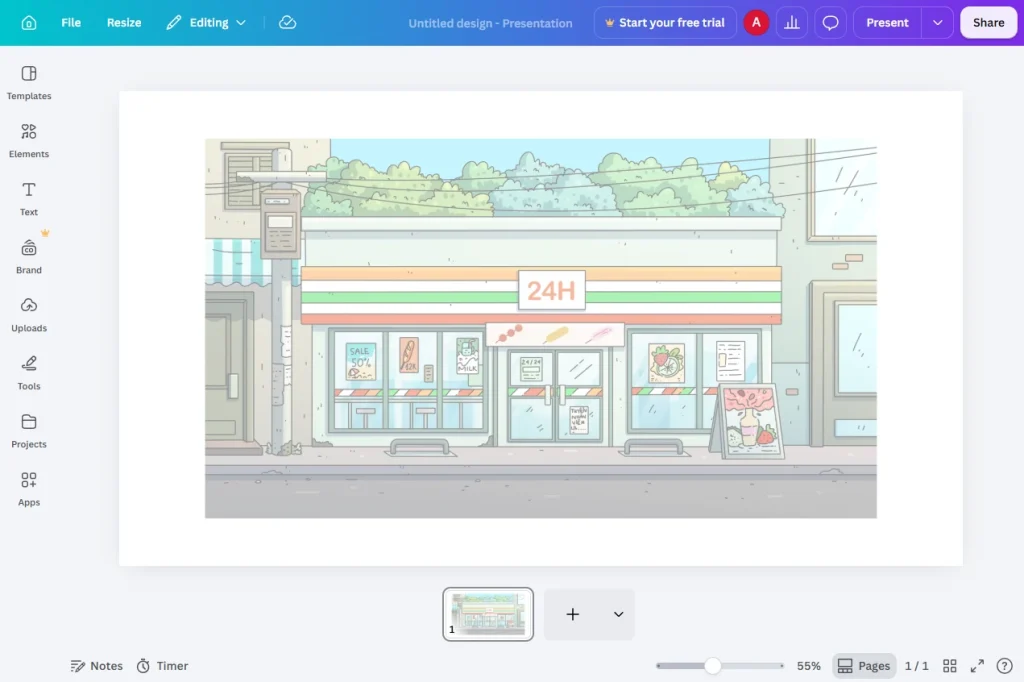
Step 2: Click the “Present” Button
In the top-right corner of the editor, click the Present button.
You’ll see a small dropdown arrow next to it. Clicking that arrow reveals several presentation modes:
- Present — standard full-screen slideshow.
- Present and record — records your voice and slides simultaneously.
- Presenter view — shows speaker notes and a timer on your screen while the audience sees only the slides.
- Present in a video call — optimized layout for Zoom, Google Meet, or Microsoft Teams.
Step 3: Choose the Right Presentation Mode
Standard Present Mode
Best for in-person presentations on a projector or shared screen. Simply click Present, and your slides go full-screen immediately.
Presenter View
If you want to see your speaker notes while presenting, choose Presenter view. This splits your screen so only the audience-facing display shows the slide, while you see:
- The current and next slide
- Your speaker notes
- A built-in timer
Present in a Video Call
Designed specifically for virtual meetings, this mode overlays your webcam feed on top of your slides — great for maintaining eye contact and engagement during remote presentations.
Step 4: Use Presenter Studio (Optional, Canva Pro)
Canva Pro users have access to Presenter Studio, which lets you:
- Record narrated video walkthroughs of your slides
- Add your webcam bubble to each slide
- Share a link so your audience can watch on-demand instead of live
To use it, click the Present dropdown and select Present and record.
Step 5: Navigate Your Slides During the Presentation
Once you’re in presentation mode:
- Use the arrow keys or spacebar to move between slides
- Click the pen/annotate icon to draw or highlight on your slides live
- Press Esc to exit presentation mode at any time
Step 6: Share a Live Link (Optional)
Canva also lets you generate a shareable link so remote viewers can follow along on their own devices in real time. Click Share, then More options, and select Present remotely to generate the link.
Common Issues When Presenting from Canva (Troubleshooting)
| Issue | Solution |
|---|---|
| Animations not playing | Make sure you’re in full Present mode, not the editor preview |
| Slides look blurry on projector | Check your display resolution settings before presenting |
| Speaker notes not visible | Switch to Presenter view instead of standard Present mode |
| Webcam not showing | Grant browser camera permissions when prompted |
| Presentation lagging | Close unused browser tabs to free up system resources |
Tips for a Professional Canva Presentation
- Rehearse in Presenter view so you’re comfortable with the notes and timer.
- Use Canva’s built-in animations sparingly — subtle transitions look more professional than flashy ones.
- Check your internet connection before a live presentation, since Canva runs in the browser.
- Test on the actual presentation device (projector, TV, or shared screen) beforehand.
- Use Presenter Studio for asynchronous presentations, like sales pitches or training materials.
Frequently Asked Questions
Can I present from Canva without downloading anything? Yes. Canva’s Present feature runs entirely in your browser or the Canva app — no download or export is required.
Does Canva have a presenter view like PowerPoint? Yes, Canva’s Presenter view shows speaker notes, a timer, and slide previews, similar to PowerPoint’s presenter mode.
Can I present a Canva presentation on Zoom or Google Meet? Yes. Use the “Present in a video call” mode, which formats your slides specifically for screen-sharing in virtual meetings.
Is Presenter Studio free? Presenter Studio’s recording features are available to Canva Pro subscribers.
Conclusion
Presenting directly from Canva eliminates the extra step of exporting to another platform, keeps your animations and design intact, and gives you access to professional presenter tools like speaker notes, timers, and live recording. Whether you’re presenting in person, on a video call, or recording an on-demand walkthrough, Canva’s built-in Present feature has you covered.