
Meta description: Learn how to add comments in Canva for feedback and team collaboration. Step-by-step instructions for desktop, mobile, and resolving comments.
Target keywords: how to add comments in Canva, Canva comments feature, Canva collaboration, leave feedback in Canva, Canva team review
Introduction
Whether you’re working with a design team, collecting feedback from a client, or reviewing a project with classmates, Canva’s built-in comments feature makes collaboration simple. Instead of emailing screenshots back and forth, you can leave notes directly on a specific part of a design, tag teammates, and track feedback in real time.
This guide covers exactly how to add comments in Canva on desktop and mobile, plus how to manage, resolve, and reply to comments effectively.
Why Use Comments in Canva?
- Pinpoint feedback — comments attach to a specific spot on the design, not just the whole page.
- Real-time collaboration — teammates can see and respond to comments instantly.
- Tag specific people — use @mentions to notify exact collaborators.
- Keep a feedback history — resolved and unresolved comments stay organized in one place.
- No extra tools needed — no need for external feedback apps or email threads.
Step 1: Open the Design You Want to Comment On
- Log in to your Canva account.
- Open the design (presentation, social post, document, etc.) you want to leave feedback on.
- Make sure you have at least Can comment or Can edit access — view-only collaborators may need permission changes from the design owner.
Step 2: Enable Commenting Mode
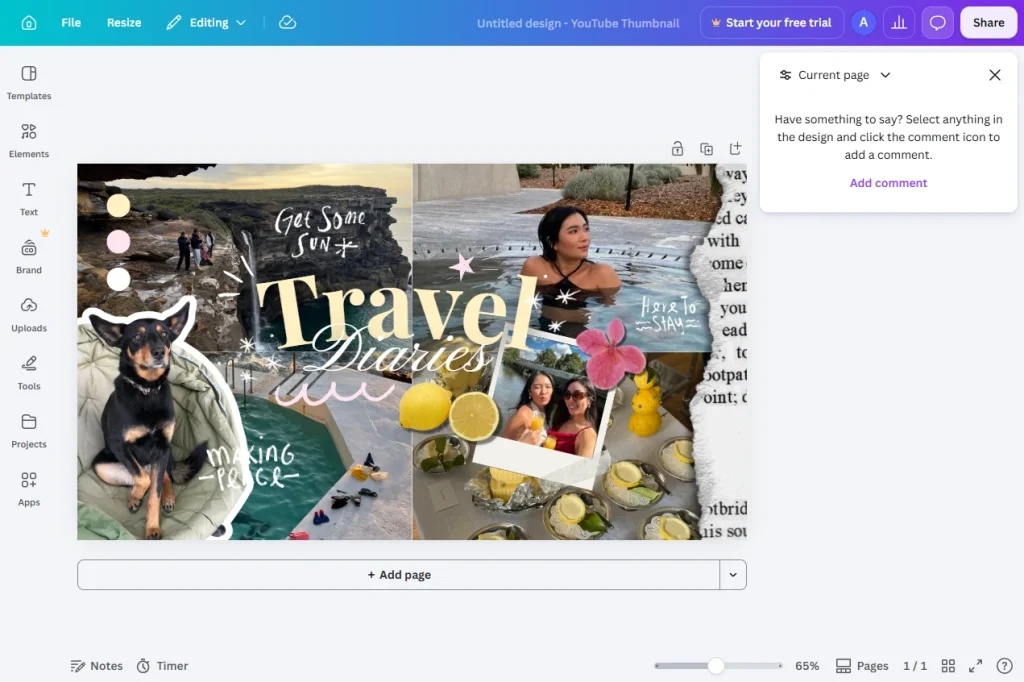
At the top of the editor, click the speech bubble icon (Comment icon) in the top toolbar. This switches your cursor into comment mode.
Tip: If you don’t see the comment icon, check that commenting is enabled in the design’s Share settings.
Step 3: Click on the Element You Want to Comment On
While in comment mode:
- Click directly on the text, image, or area of the slide/page you want to discuss.
- A comment box will pop up right at that spot.
- Type your feedback into the box.
Step 4: Tag a Teammate (Optional)
To notify a specific collaborator:
- Type the @ symbol followed by their name or email inside the comment box.
- Select their name from the dropdown list.
- They’ll receive a notification (via email and/or in-app) letting them know they’ve been tagged.
Step 5: Post the Comment
Click Post (or press Enter/Return) to publish the comment. It will now appear:
- Pinned to that exact spot on the design
- Listed in the Comments panel, accessible from the top-right corner of the editor
Step 6: Reply to or Resolve Comments
To keep feedback organized:
- Reply: Click on any comment thread and type your response to keep the conversation in context.
- Resolve: Once feedback has been addressed, click the checkmark icon on the comment to mark it as resolved. Resolved comments are hidden from the main view but still accessible in the comment history.
- Reopen: If needed, resolved comments can be reopened for further discussion.
How to Add Comments in Canva on Mobile
The Canva mobile app supports comments too:
- Open the design in the Canva app.
- Tap the comment icon (speech bubble) at the top of the screen.
- Tap the spot on the design you want to comment on.
- Type your comment and tap Send.
- View all comments by tapping the Comments panel icon.
Managing Comment Permissions
Design owners can control who’s allowed to comment:
| Permission Level | Can View | Can Comment | Can Edit |
|---|---|---|---|
| Can view | ✅ | ❌ | ❌ |
| Can comment | ✅ | ✅ | ❌ |
| Can edit | ✅ | ✅ | ✅ |
To change permissions, click Share → adjust the access level next to each collaborator’s name or in the general share link settings.
Common Issues When Commenting in Canva (Troubleshooting)
| Issue | Solution |
|---|---|
| Comment icon is missing | Ask the design owner to enable commenting in Share settings |
| Can’t tag a teammate | Make sure they’ve been added as a collaborator on the design first |
| Notifications not received | Check notification settings in Canva account preferences |
| Comments disappeared | They may have been marked as resolved — check the Comments panel history |
| Can’t resolve a comment | Only editors and the comment author may have permission to resolve it |
Tips for Effective Feedback in Canva
- Be specific — click directly on the element you’re referencing rather than leaving a general comment.
- Use @mentions to make sure the right person sees time-sensitive feedback.
- Resolve comments as you go to keep the feedback panel clean and easy to navigate.
- Check the Comments panel regularly during active collaboration to avoid missing new notes.
- Combine with Canva’s version history to track how a design evolved based on feedback.
Frequently Asked Questions
Can I add comments in Canva for free?
Yes, commenting is available on Canva’s free plan, not just Canva Pro.
Can I comment on a Canva design without an account?
Some shared links allow guest commenting, but typically a free Canva account is required to leave comments.
How do I see all comments on a design?
Click the Comments panel icon in the top-right corner of the editor to view every comment, reply, and resolution status in one place.
Can I delete a comment in Canva?
Yes — click the three-dot menu next to your own comment and select Delete. You can only delete comments you authored (design owners may have broader permissions).
Conclusion
Adding comments in Canva is one of the fastest ways to streamline feedback and collaboration without leaving the design itself. By pinning notes directly to specific elements, tagging teammates, and resolving comments as issues are addressed, teams can keep their design workflow organized and efficient — all inside Canva.