
Canva’s element library is massive, packed with icons, shapes, illustrations, photos, videos, stickers, and more. With so many options, finding exactly what you need can feel overwhelming if you don’t know how to search efficiently. Learning how to use Canva’s search tools well can save you significant time and help your designs look more polished.
In this guide, you’ll learn exactly how to search for elements in Canva, filter results to find the right style, and use search tricks that speed up your design process.
Why Searching Elements Effectively Matters
Canva’s element library includes millions of graphics contributed by Canva and its creator community. Knowing how to search well allows you to:
- Quickly find the exact icon, shape, or illustration you need
- Filter results by type, style, or color
- Discover free vs. Pro (paid) elements before committing to a design
- Save time compared to endless scrolling through unfiltered results
Step 1: Open the Elements Panel
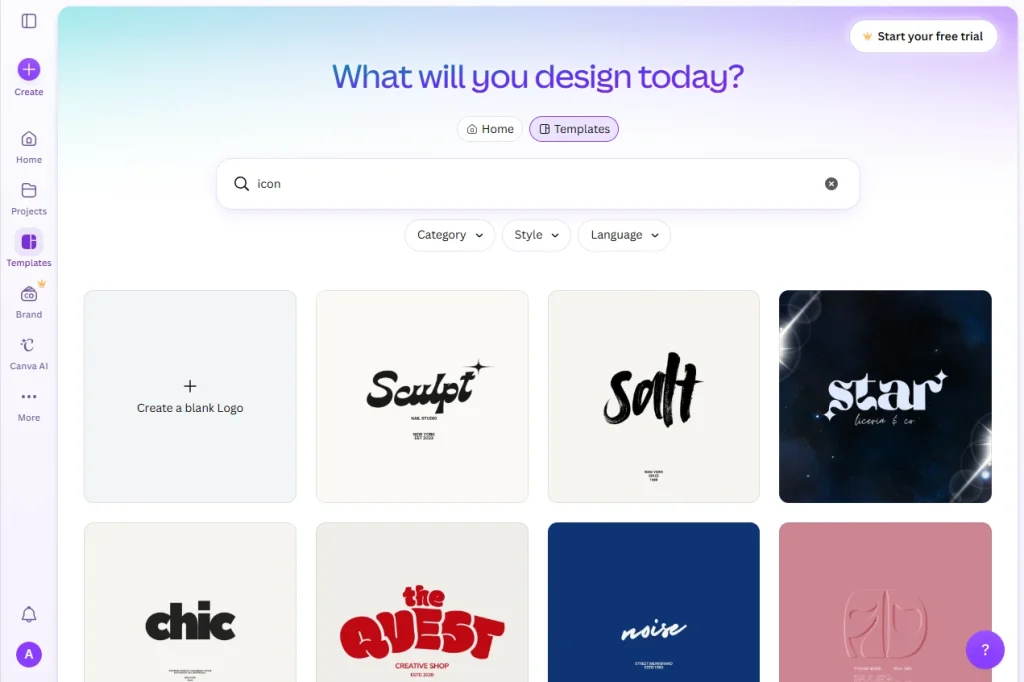
In the Canva editor, look at the left-hand sidebar and click Elements. This opens the library containing graphics, shapes, photos, videos, and more.
Step 2: Use the Search Bar
At the top of the Elements panel, you’ll see a search bar. Type a keyword describing what you’re looking for — for example, “arrow,” “confetti,” “birthday cake,” or “office desk.”
Press Enter or click the search icon to view the results.
Step 3: Browse the Search Results
Canva displays results organized into categories like:
- Graphics (icons and illustrations)
- Photos
- Videos
- Stickers and animations
- Shapes and lines
Scroll through each category, or click See all under a specific category to view more results of that type only.
Step 4: Filter Your Search Results
To narrow down results further, use the filter options that appear near the top of the search results:
- Style: Choose from filters like flat, line art, 3D, watercolor, or hand-drawn.
- Color: Filter graphics by a specific color to match your design’s palette.
- Price: Toggle to show only free elements if you don’t have a Canva Pro subscription.
Applying filters helps you avoid scrolling through hundreds of irrelevant results.
Step 5: Preview and Add an Element
Once you find an element you like:
- Click on it to add it directly to your design canvas.
- Drag it to reposition it wherever you need.
- Resize it using the corner handles, or recolor it (for compatible graphics) using the color picker in the toolbar.
Step 6: Search Within a Specific Category
If you already know the type of element you want, you can search directly within a category:
- Click Elements in the sidebar.
- Select a category tab, such as Photos, Videos, or Stickers.
- Use the search bar at the top of that specific category to search only within it.
This is useful when you know you want a photo rather than an icon, for example.
Step 7: Use Specific or Broad Keywords Strategically
Search results improve significantly based on how you phrase your keywords:
- Broad keywords (e.g., “flower”) return a wide variety of results.
- Specific keywords (e.g., “pink rose watercolor”) narrow results to a precise style.
- Combine object + style (e.g., “laptop line icon”) for more targeted graphics that match a consistent design aesthetic.
Experimenting with keyword combinations often produces better results than a single generic word.
Common Issues With Searching Elements
Search returns too many irrelevant results Try adding style or color descriptors to your search term, or use the filter options to narrow things down.
Can’t find free elements Use the Price filter and select “Free” to hide Pro-only (paid) elements from your results.
Elements look inconsistent in style Search using consistent style keywords (like “flat,” “line,” or “3D”) across all your searches so the graphics you add match visually.
Can’t recolor an element Not all graphics support recoloring — this typically depends on whether the element was designed with editable color layers. Look for the color palette icon in the toolbar when the element is selected; if it doesn’t appear, the element isn’t recolorable.
Tips for Searching Elements Effectively
- Use style-specific keywords to maintain a consistent visual theme throughout your design.
- Filter by color early if you’re working within a strict brand palette.
- Check the Price filter before finalizing a design if you’re using the free version of Canva.
- Save favorite elements by starring them, so you can quickly find and reuse them in future designs.
Final Thoughts
Searching for elements in Canva becomes much faster once you know how to combine keywords, apply filters, and browse by category. With these techniques, you’ll spend less time scrolling and more time actually designing.
Next time you need the perfect icon or graphic, head straight to the Elements search bar and put these tips to work.