
Once you’ve nailed the perfect look for a design — the right font pairing, color palette, and overall aesthetic — you don’t have to rebuild it from scratch every time you want that same style elsewhere. Canva makes it easy to copy a design’s style and apply it to other designs, keeping your visual identity consistent without repetitive manual formatting.
In this guide, you’ll learn exactly how to copy a design style in Canva, apply it to new or existing designs, and fix common issues that come up along the way.
Why Copying a Design Style Is Useful
Rebuilding the same look design after design wastes time and increases the chance of small inconsistencies. Copying a style lets you:
- Instantly apply a proven color and font combination to new content
- Keep a cohesive aesthetic across a campaign, series, or brand
- Save time compared to manually adjusting colors and fonts one by one
- Experiment with a favorite look across multiple design types
Step 1: Open the Design with the Style You Want to Copy
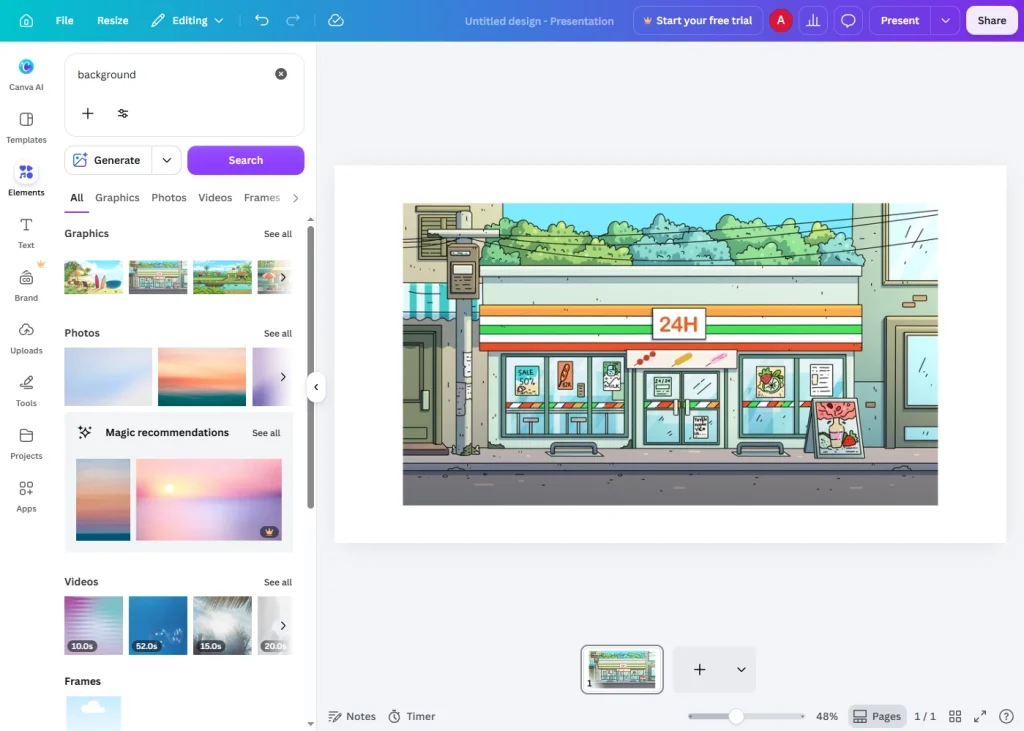
Log in to Canva and open the design that has the look you want to reuse — this will be your style “source.”
Step 2: Use the Styles Panel
- Click Styles in the left-hand sidebar (or the top toolbar, depending on your device).
- Canva will display a set of style suggestions based on your design’s current colors and fonts, along with palette and font combinations pulled from your design.
Step 3: Apply a Style Preset (Optional)
If you like one of Canva’s suggested style variations, you can apply it directly:
- Browse the style thumbnails shown in the Styles panel.
- Click on a style that matches the look you want.
- Canva will automatically update your design’s color palette and fonts to match.
This is useful when you want a quick, cohesive style without setting each color and font manually.
Step 4: Save a Custom Style to Your Brand Kit
If you’ve manually created a color and font combination you love and want to reuse elsewhere:
- Open Brand Kit from the sidebar.
- Add the specific colors from your design to the Colors section (see the “Add Brand Colors” guide for detailed steps).
- Add the fonts used in your design to the Fonts section, assigning them as Heading and Body fonts.
Once saved to your Brand Kit, this style becomes available as quick-select swatches and fonts in any design you create going forward.
Step 5: Apply the Copied Style to a New Design
To use your saved style elsewhere:
- Open a new or different existing design.
- Click the Brand tab in the top toolbar, or open the Brand Kit sidebar panel.
- Apply your saved brand colors to backgrounds, shapes, or text using the color fill tool.
- Apply your saved fonts to text elements using the font dropdown, selecting from the “Brand fonts” section.
This effectively recreates the same visual style from your original design.
Step 6: Copy Style Using Copy and Paste (Element-Level)
For copying the exact formatting of a specific text box or element (not the whole design):
- Click on the element with the formatting you want to copy (e.g., a styled text box).
- Right-click and look for Copy style, or use the paintbrush-style “Copy style” icon in the toolbar if available on your account.
- Select the element you want to apply that formatting to.
- Click Paste style (or the equivalent icon) to apply the same font, color, and formatting.
This is a fast way to match formatting between two specific elements without touching your whole Brand Kit.
Step 7: Duplicate the Entire Design as a Starting Point
If you want to reuse the whole design’s style, including layout, the simplest approach is duplication:
- Open the original design.
- Click the three-dot menu (⋯) on the design thumbnail from your Projects page, or use File > Make a copy inside the editor.
- Replace the content (text, images) in the duplicate while keeping the same colors, fonts, and layout intact.
This preserves the entire style exactly since you’re working from a true copy of the original.
Common Issues With Copying Design Styles
Style suggestions don’t match my design well Canva’s automatic Styles suggestions are generated based on existing colors and fonts, but you can always set colors and fonts manually through Brand Kit instead for full control.
Copy style / Paste style option is missing This feature’s availability can vary depending on your plan and platform (web vs. mobile app). If unavailable, apply matching formatting manually using the font and color tools.
Brand colors and fonts don’t appear on a new design Make sure you’re pulling from the correct Brand Kit — if you manage multiple Brand Kits, confirm the right one is selected for the current design.
Duplicated design doesn’t retain formatting This is uncommon, but if it happens, check that you used “Make a copy” rather than exporting and reimporting the design, which can strip formatting.
Tips for Reusing Design Styles Effectively
- Save your best styles to Brand Kit rather than recreating them manually each time.
- Use “Copy style” for quick element-level matching instead of adjusting fonts and colors from scratch.
- Duplicate whole designs when you want the layout preserved along with the style.
- Name your Brand Kit colors and fonts clearly so applying the right style stays fast and error-free.
Final Thoughts
Copying a design style in Canva means you never have to rebuild a great look from scratch. Whether you’re applying a full Brand Kit, using copy/paste style on specific elements, or duplicating an entire design, these methods keep your visuals consistent and save you valuable time.
Next time you fall in love with a design’s look, don’t start over — copy the style and build on what already works.